Invoices
Note:
- The Invoices section under the Administration tab of the Enterprise Portal is only available in Root context.
- Enterprise Account Users can view their Account's invoices under the Invoices section of the Account tab. See the Account Invoices section of the user manual for more information.
Introduction
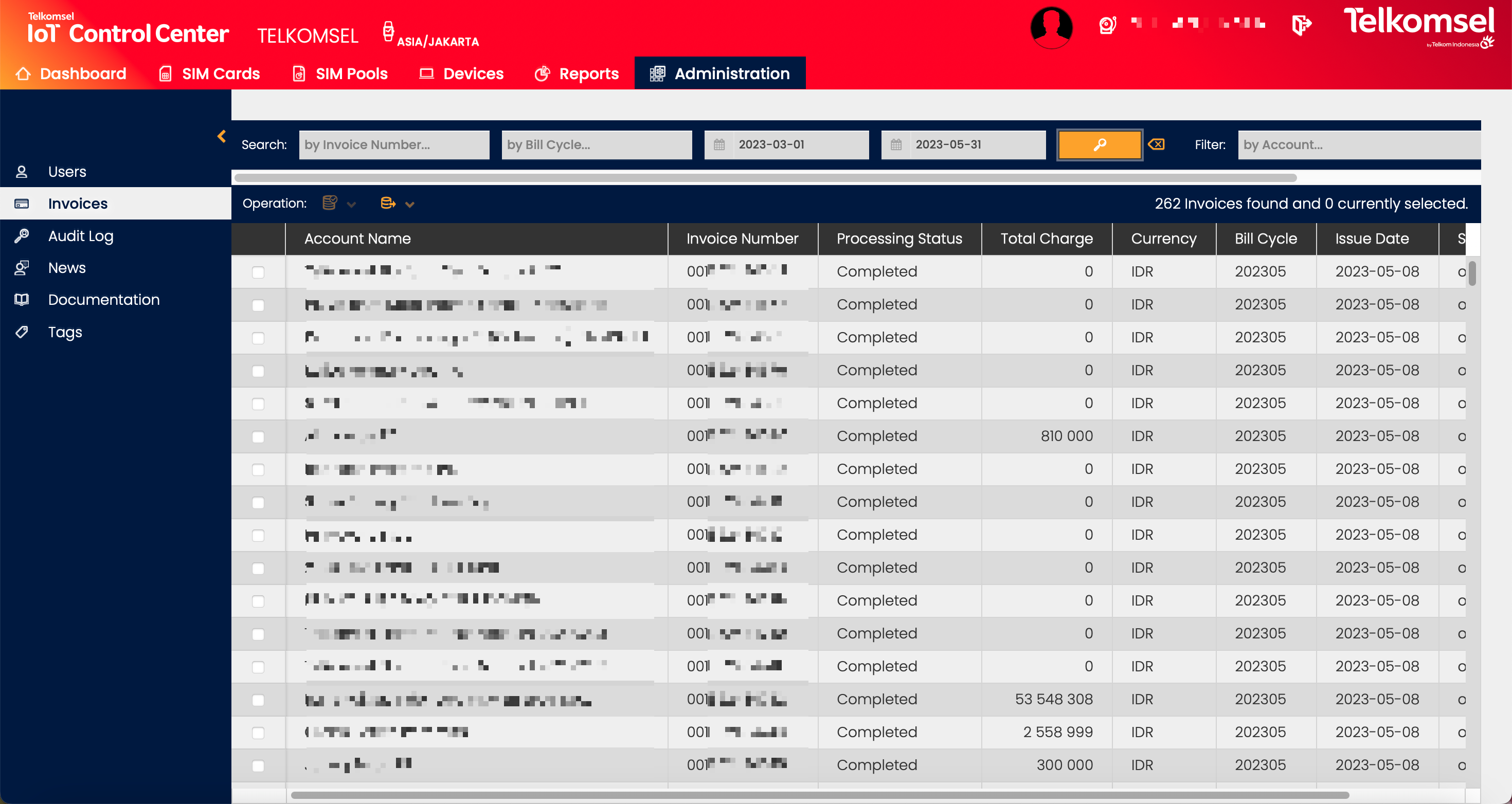
Invoices section gives CSP Users information about the invoices that have been issued to the Enterprise Accounts.
The Enterprise Portal's Invoices menu displays a list of past Invoices created in previous Billing Cycles. Individual invoice summary details can be viewed by selecting them from the Invoice list.
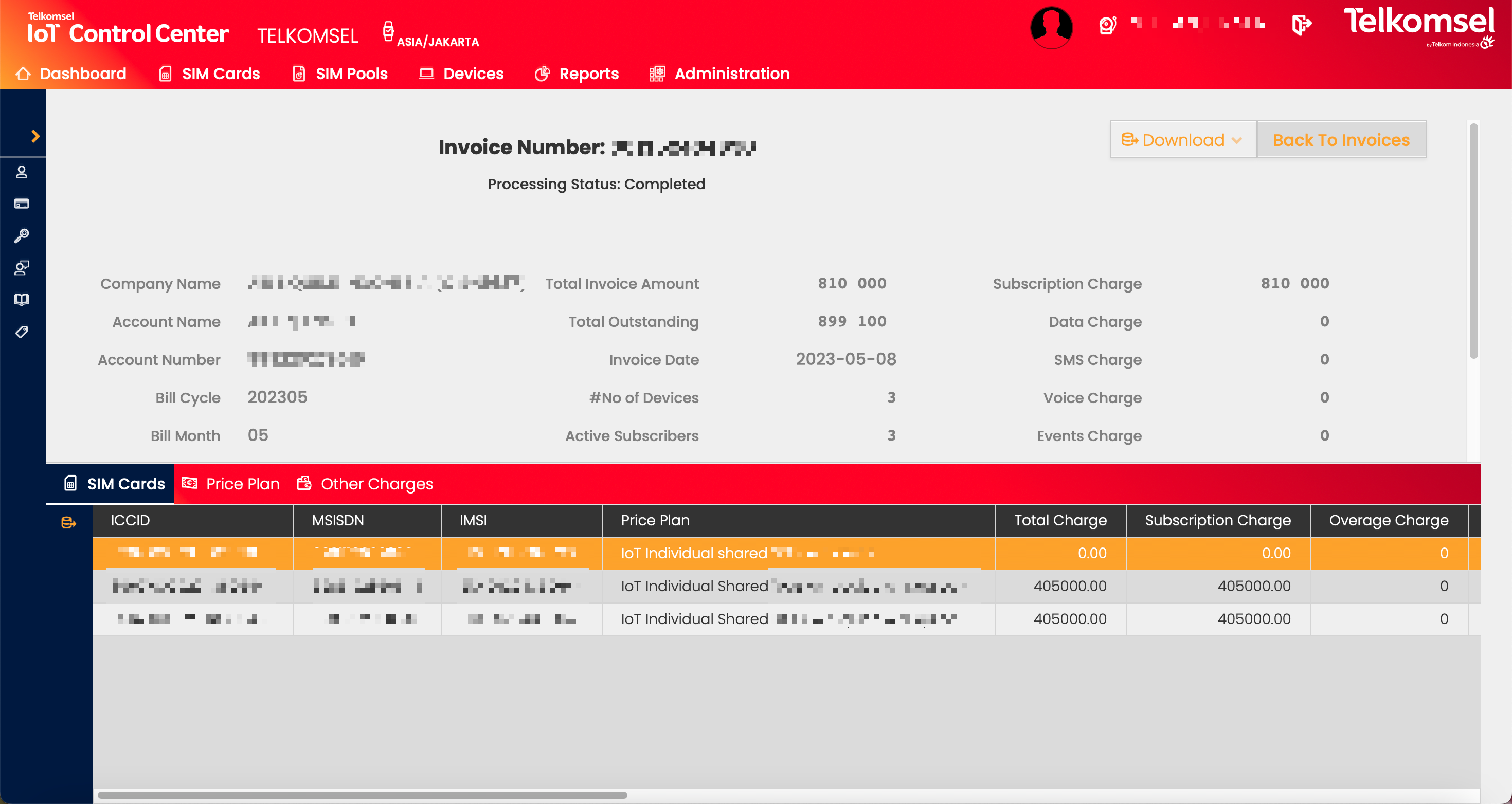
Invoice Processing Status
Invoice Processing Status refers to the current stage of processing an Invoice. The following values are available:
Status Value | Description |
|---|---|
Draft | Invoice has been produced, however, Quality Gate Process is pending. |
Completed | Quality Gate Process has run and has passed successfully. |
Failed | Quality Gate Process has run and failed. |
The Quality Gate Process checks the key account and usage data between CMP and an external billing system invoice file (note that this is a custom integration), and fails if there is a difference, e.g. between the number of active SIMs or total data usage.
Note:
- The Invoice Processing Status is only visible to CSP Users in the Administration/Invoices GUI.
- Only invoices with the status Completed are displayed to Enterprise Users in the Account/Invoices GUI.
Search for an Invoice
The search option of the Invoices module allows Users to retrieve a list of Invoices by entering Invoice Numbers or Bill Cycles into the Search field.
Search results may be filtered with the criteria given in the Search bar.
Filters:
- Issue Date (From-To)
- Status
- Account
The inserted search and filter criteria can be removed by clicking on the Clear search  icon.
icon.

Download Invoice PDF
Users can download invoices in PDF format from the Invoices grid by clicking on the Download Invoice PDF File  icon in the Download column.
Export Invoices
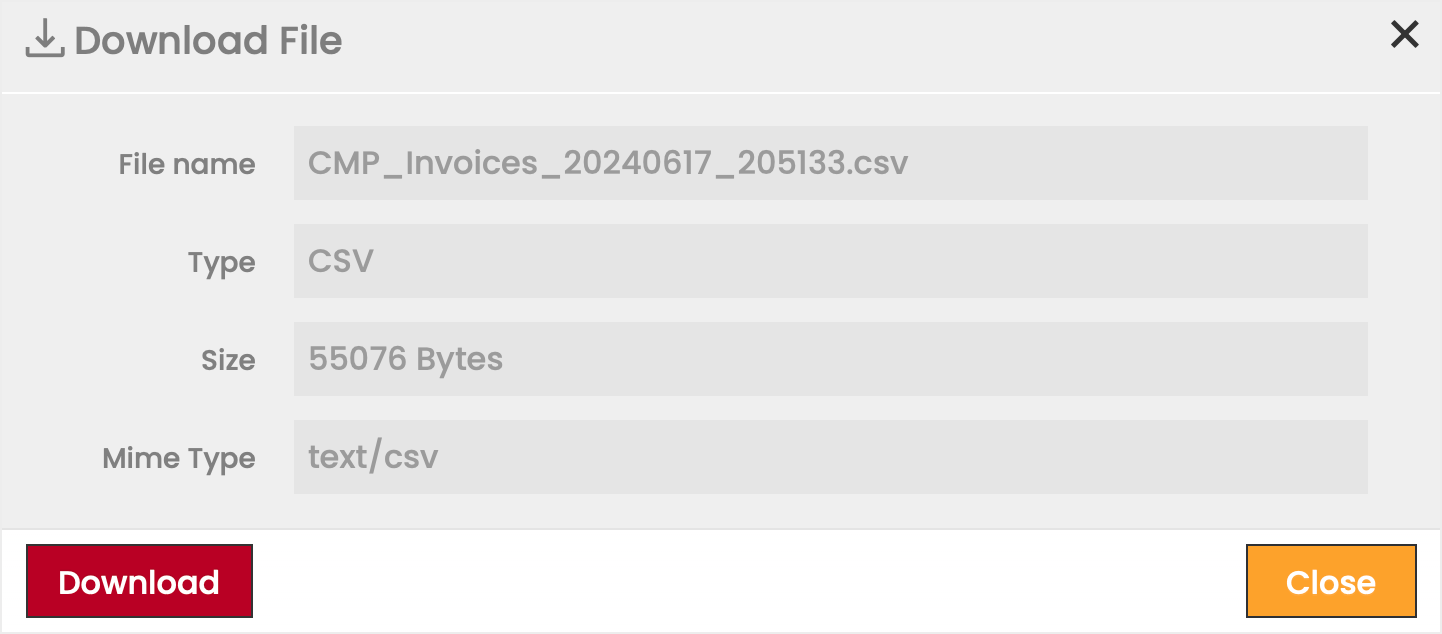
The Invoices grid allows Users to select one or more invoices to export as  CSV or
  XLS files. The exported file contains the Invoice Summary for all selected Invoices.
Export Selected Invoices
To export selected Invoices:
- Select Invoices from the grid.
- Click on the Export Selected
 icon.
icon. - Select the file format (CSV or XLS ) in which the content will be exported.
- Click Download to finalize the export.
Export All Invoices
To export all Invoices:
- If necessary, filter the content of the Invoices grid.
- Click on the Export All matching current filter-criteria
 icon.
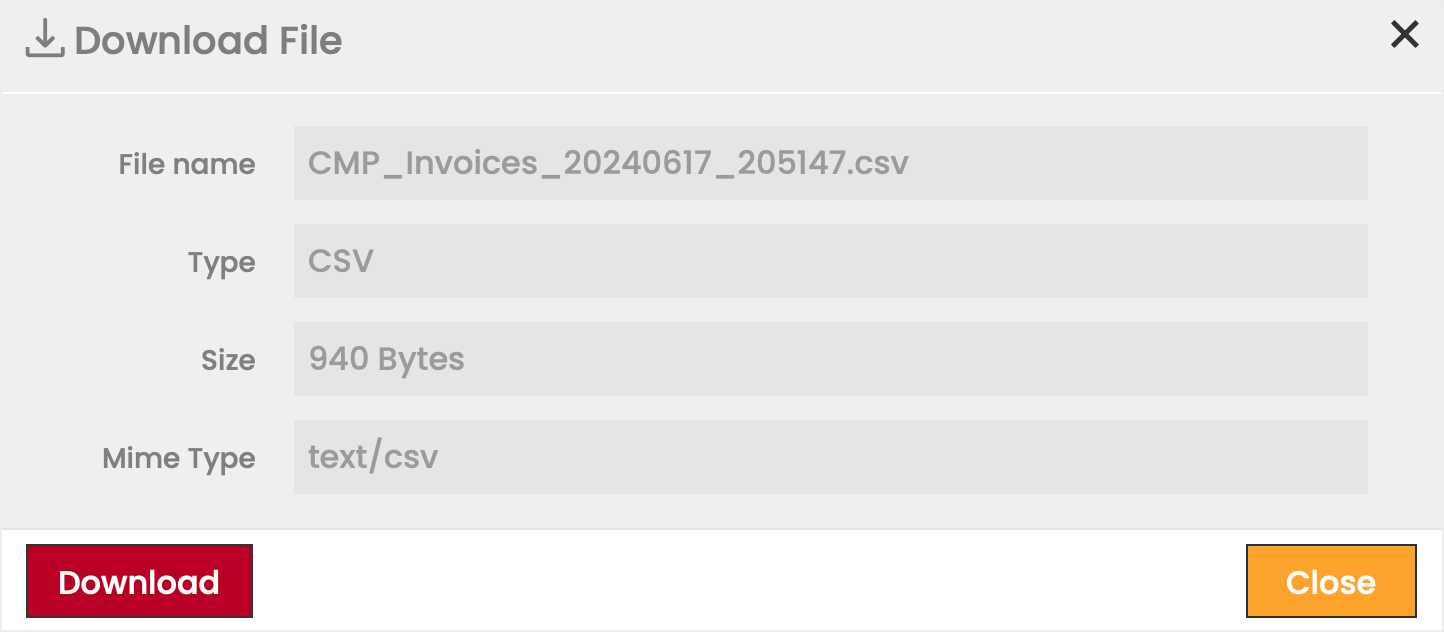
icon. - Select the file format (CSV or XLS ) in which the content will be exported.
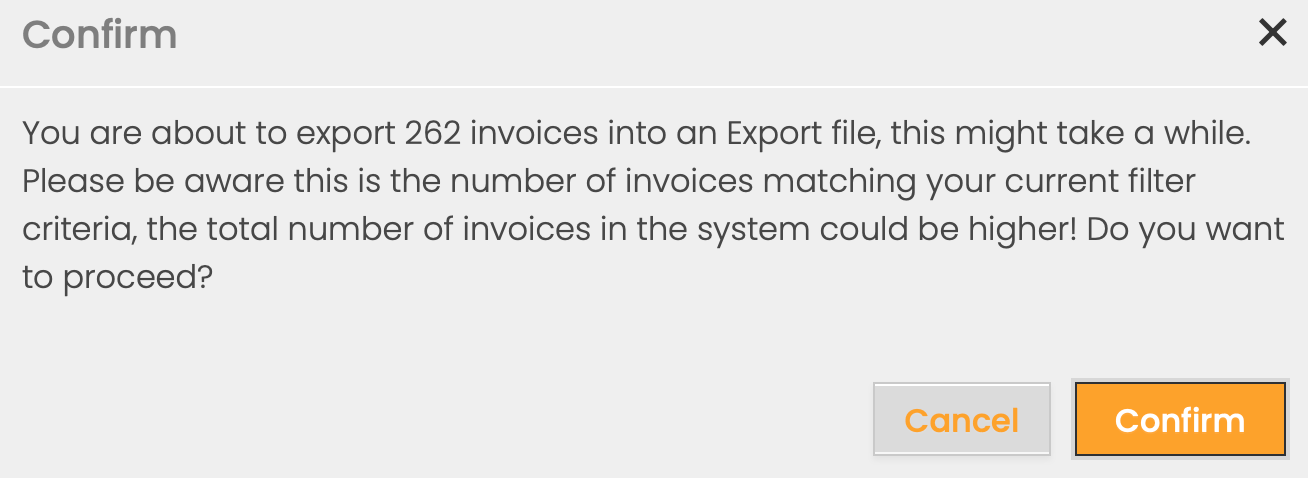
- Click Confirm.
- Click Download to finalize the export.
Invoice Summary
Individual invoice summary details can be viewed by selecting them from the Invoice list.
Click on Open summary in the row of the selected invoice in the Invoices grid to open the summary of that invoice.
Single Bill
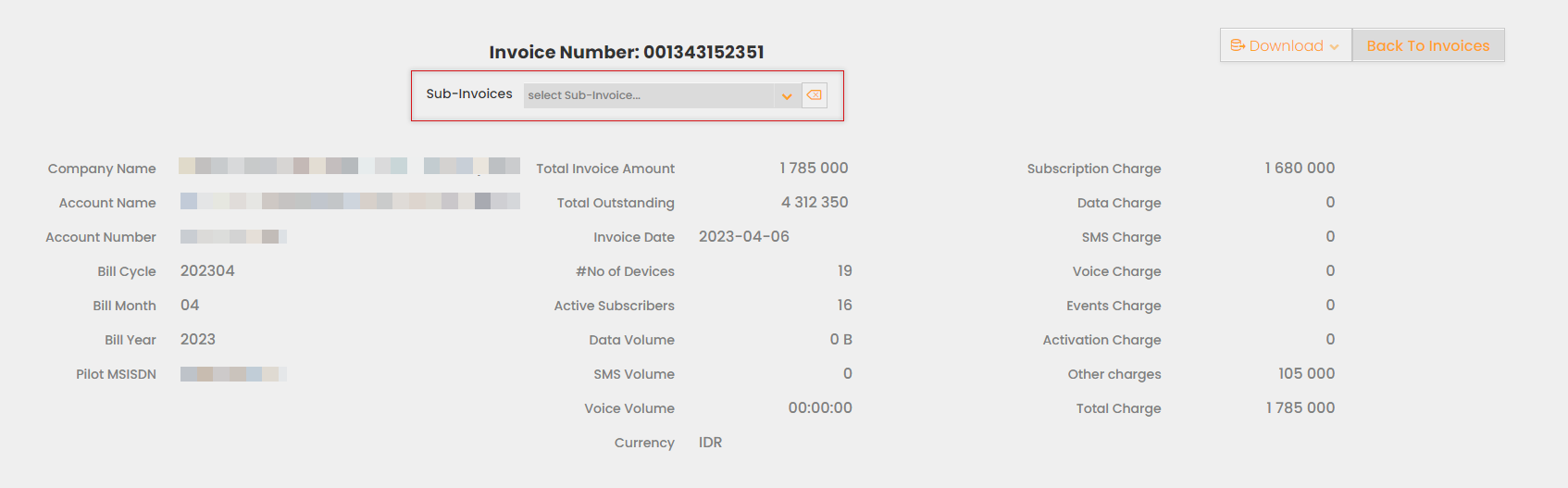
For customers where there is a Single Bill Implementation (note this requires custom integration), there is an additional capability to see the child invoices when in the parent (primary) Account invoice.
Download Invoice Summary
By clicking the Download button and selecting the respective option, invoice summaries can be exported as CSV or XLS files.
Invoice Details
SIM Cards
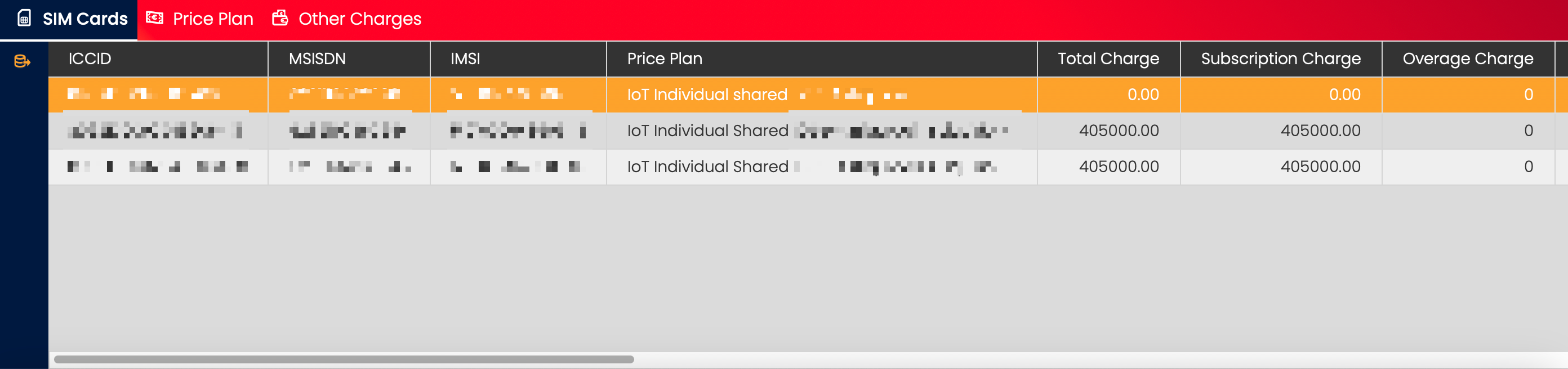
The SIM Cards tab shows information on each billable SIM Card in relation to the invoice.
By clicking on the Export icon, the information displayed in the SIM Cards tab can be exported.
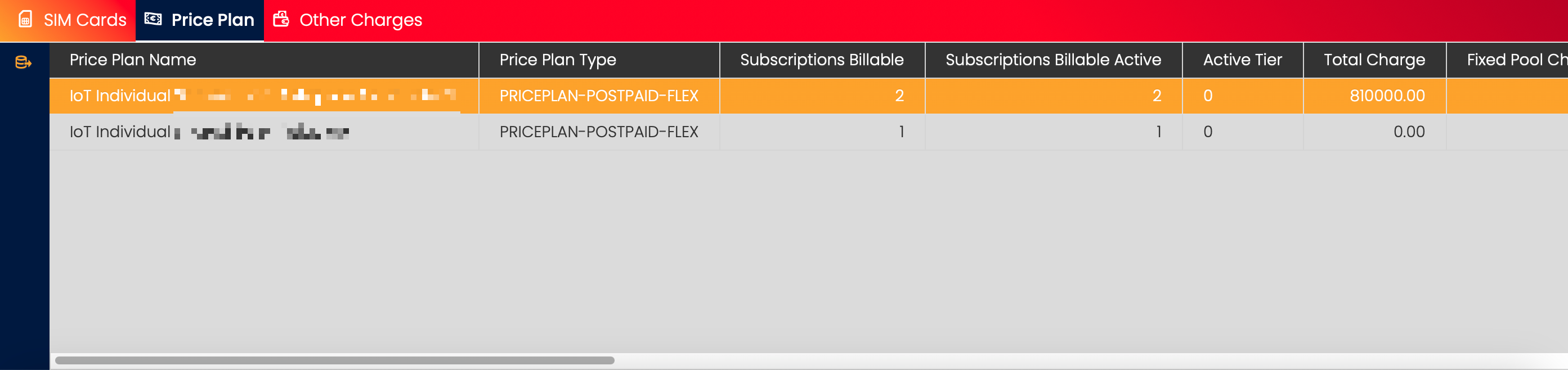
Price Plan
The Price Plan tab shows all the Price Plans with billable SIM Cards during the Billing Cycle.
By clicking on the Export icon, the information displayed in the SIM Cards tab can be exported.
Other Charges
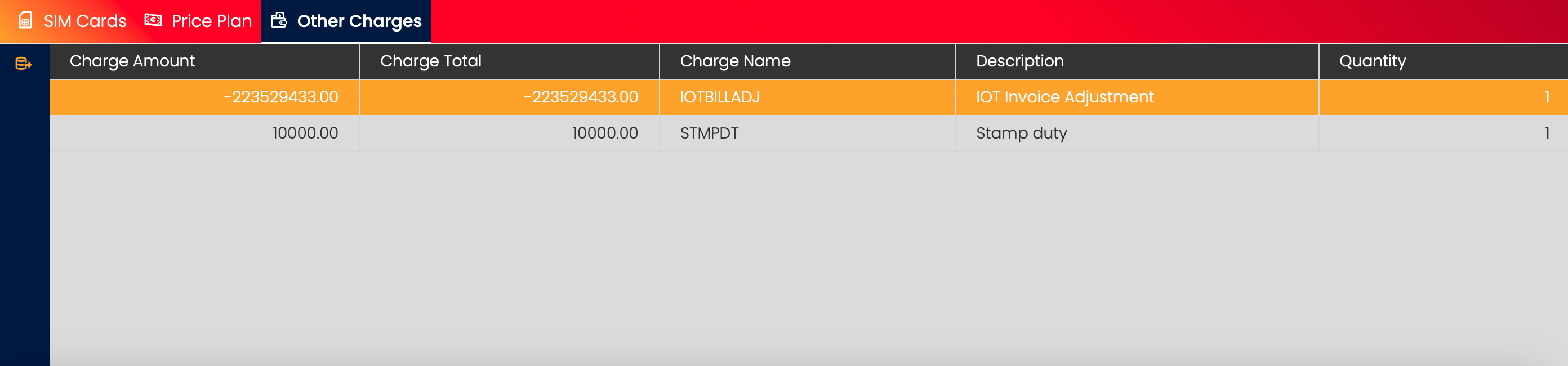
The Other Charges tab shows information on any miscellaneous charges for the Billing Cycle.
By clicking on the Export icon, the information displayed in the Other Charges tab can be exported.